Step-by-Step Guide to Mapping a LED Wall with a NovaStar Processor

Mapping a LED WALL with a novastar processor

Step 1: Hardware Setup (Novastar Processor Running under NovaLCT)

  • Connect power and HDMI from your PC to the processor for video input.
  • For third-party processors, use a DVI cable from the output to the input on the NovaStar card.
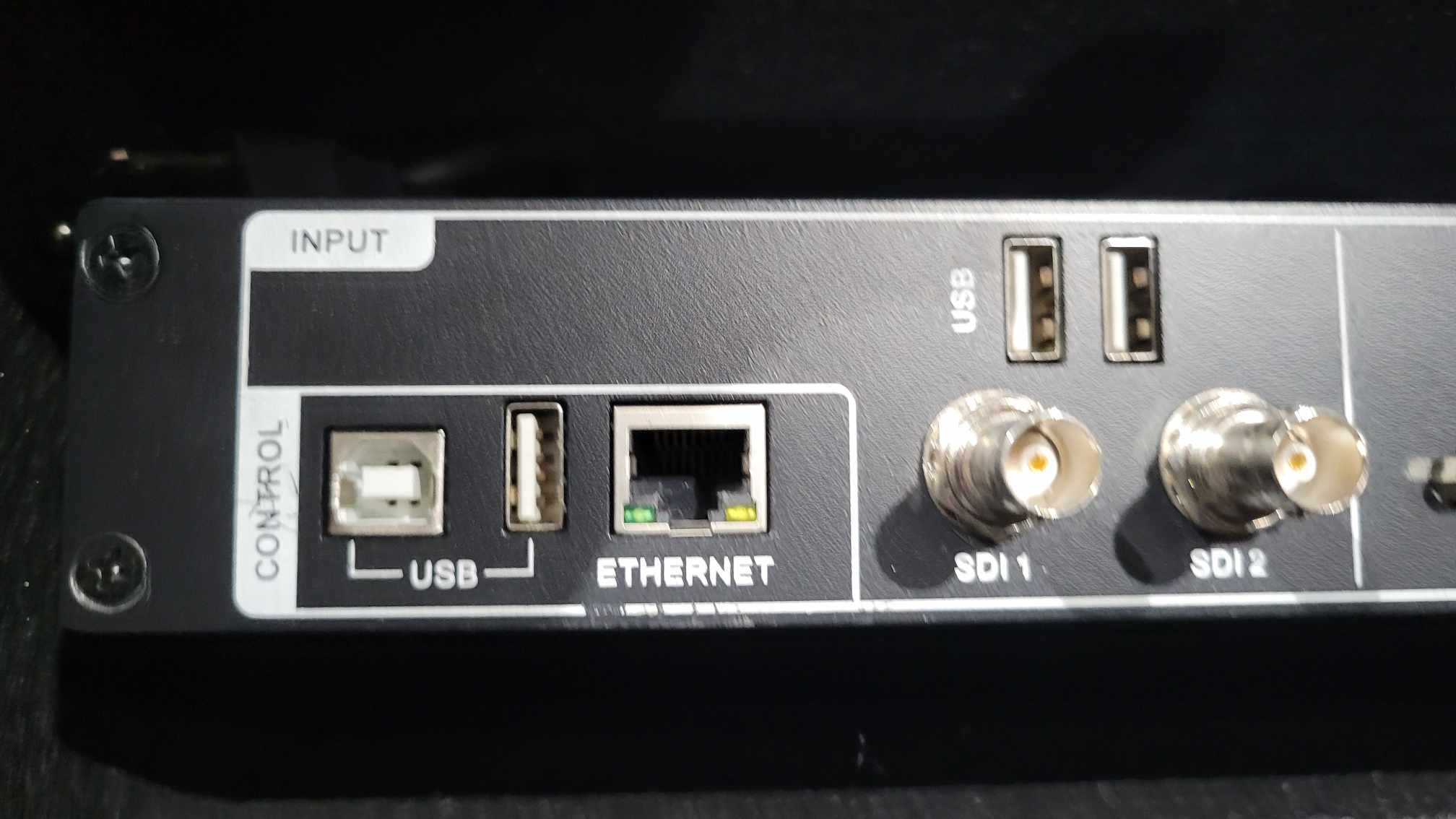
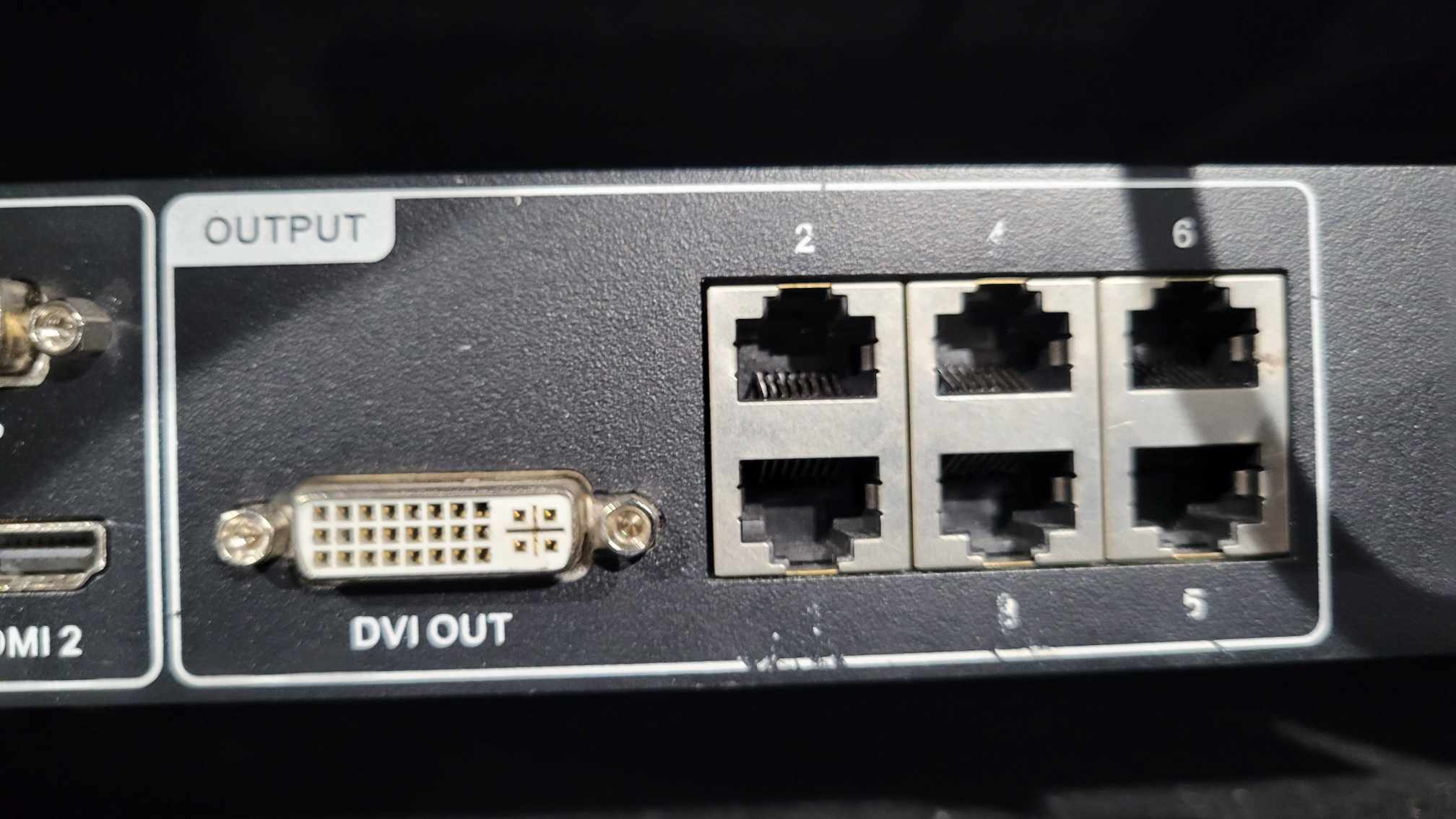
  • Connect USB from the NovaStar card and CAT5 cables to the panels.
Mapping a LED Wall with a NovaStar Processor

Novastar VX6S USB Connection to your Laptop

Mapping a LED Wall with a NovaStar Processor

CAT5 Cables to your LED Panel

Mapping a LED Wall with a NovaStar Processor

DVI & HDMI Inputs on Novastar VX6S

Step 2: Software Setup

  • Launch the NovaLCT software.
  • Log in as admin/admin (Advanced Synchronous System user).
  • Open Screen Configuration and verify USB port connection.

Step 3: Receiving Card Setup

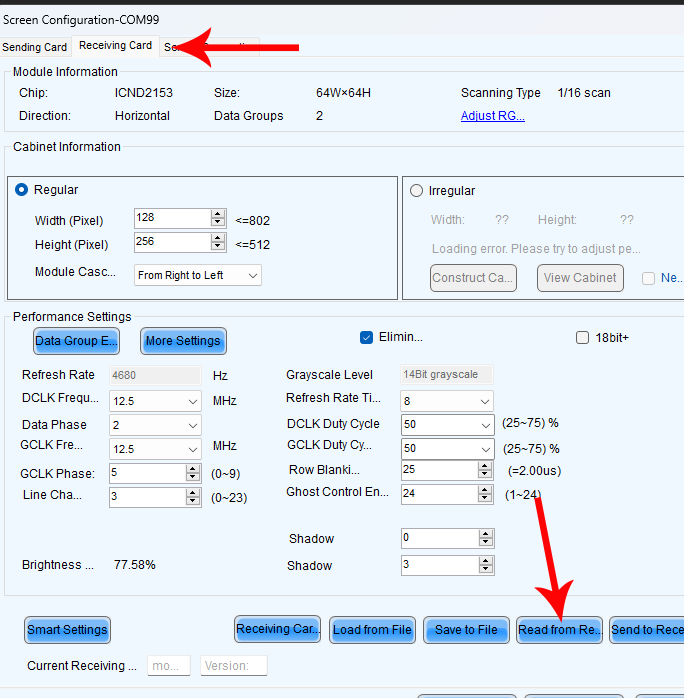
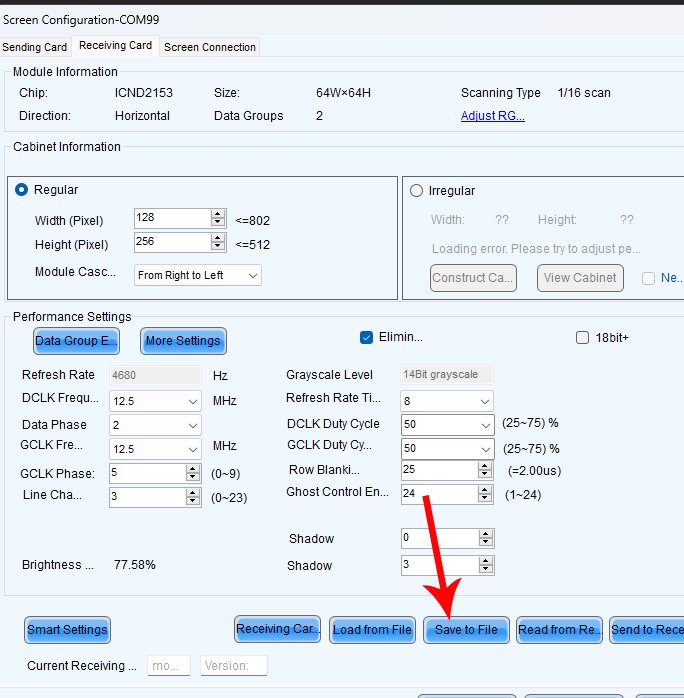
  • In the Receiving Card Page, click Read from Receiving Card.
Mapping a LED Wall with a NovaStar Processor
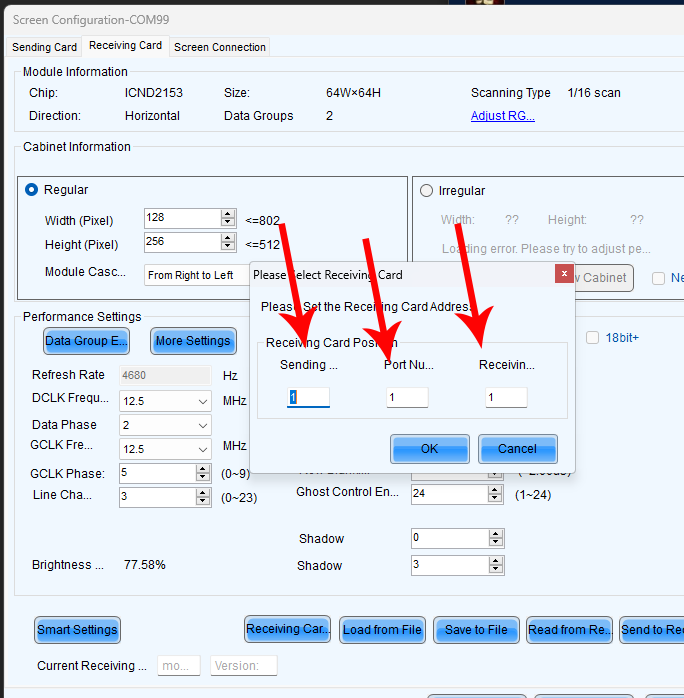
  • Sending Port (From Processor), Port Number (From Processor) and Receiving Card Number (From Panel)
Mapping a LED Wall with a NovaStar Processor
  • Ensure the correct pixel size (e.g., 128×256 or 168×168) is displayed.
  • Backup the rcg file by saving it to your computer.

Mapping a LED Wall with a NovaStar Processor

Step 4: Screen Connection

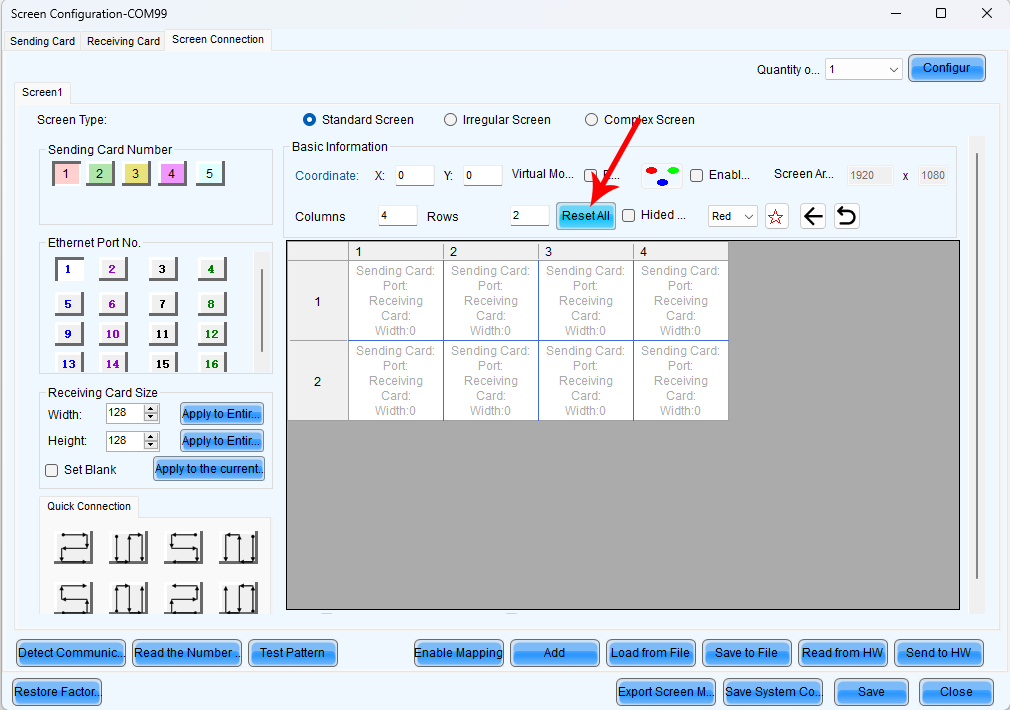
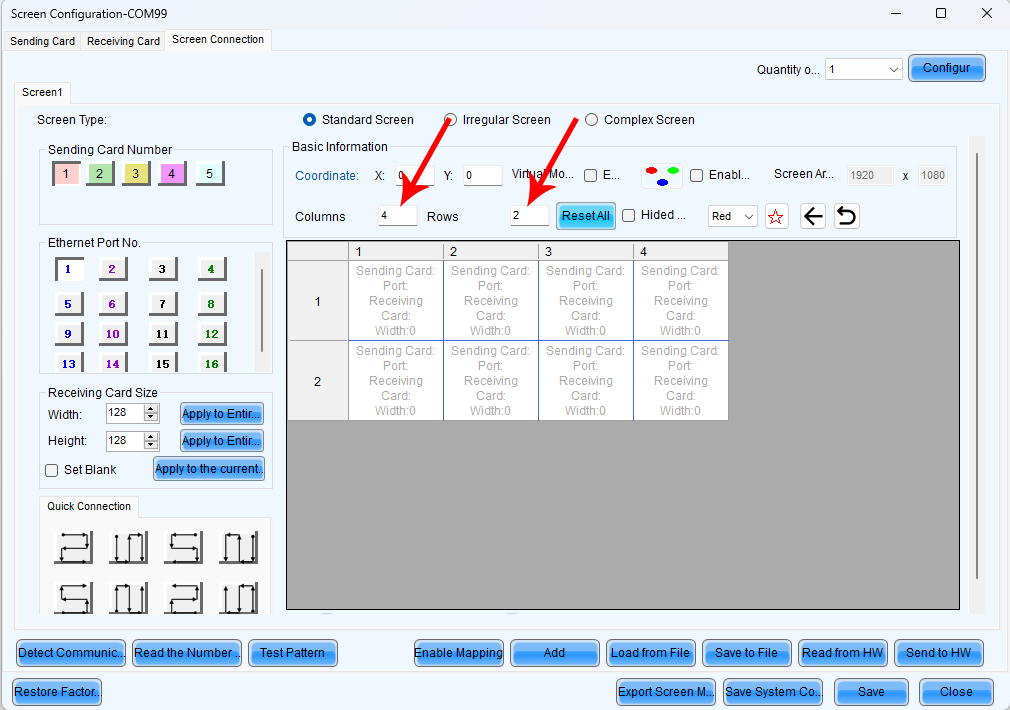
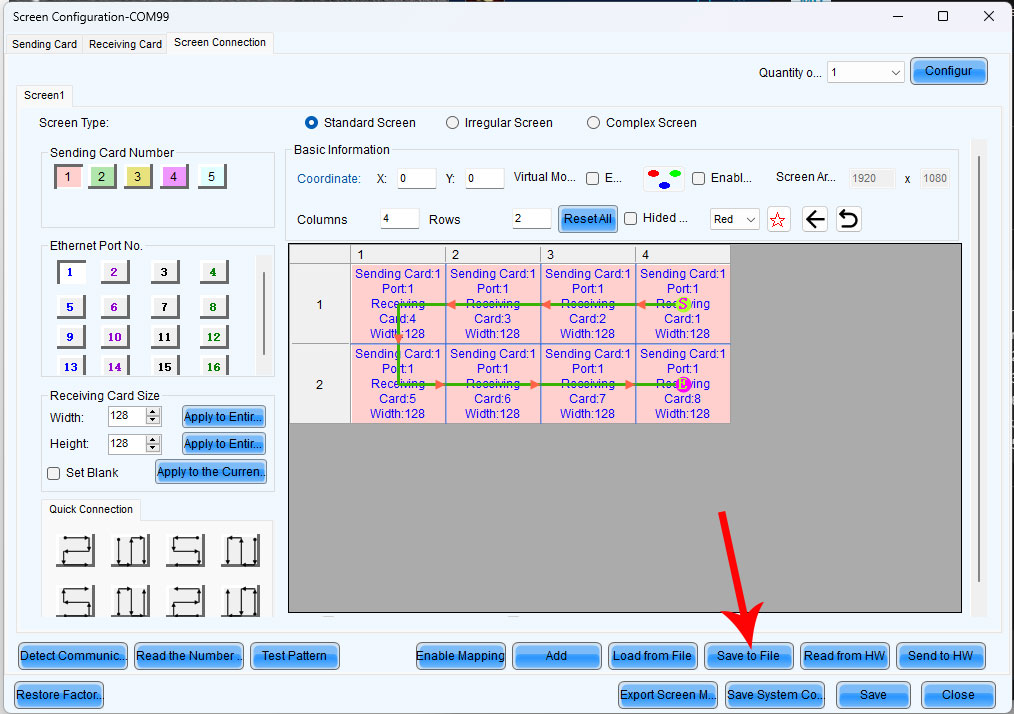
  • Reset all and enter the correct rows and columns (e.g., 4×2) for your wall.
Mapping a LED Wall with a NovaStar Processor
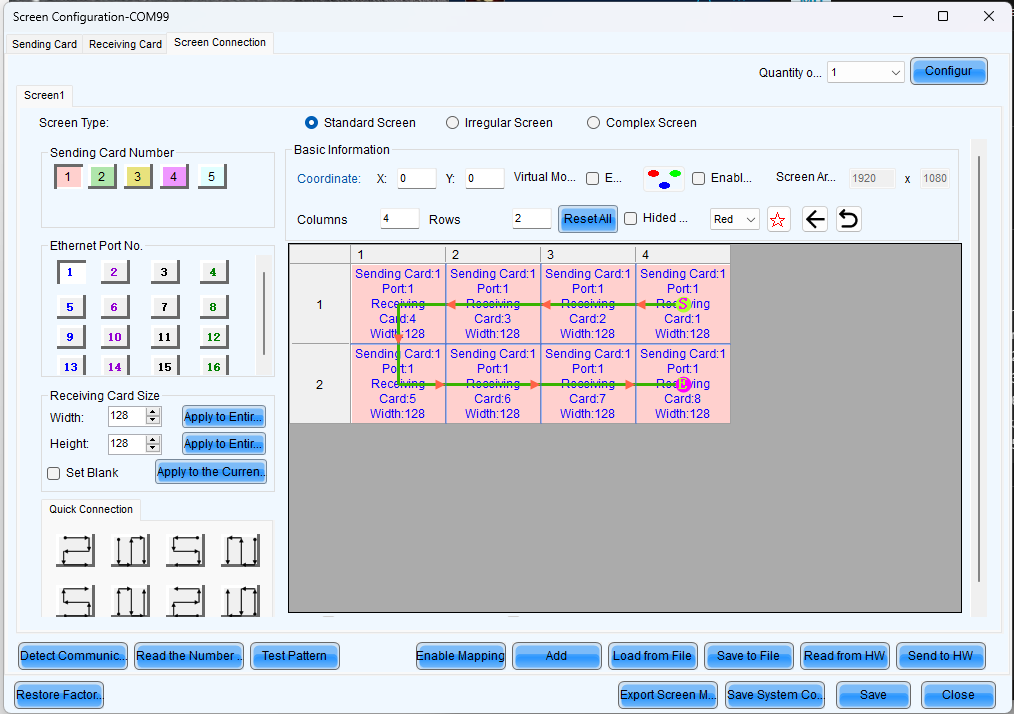
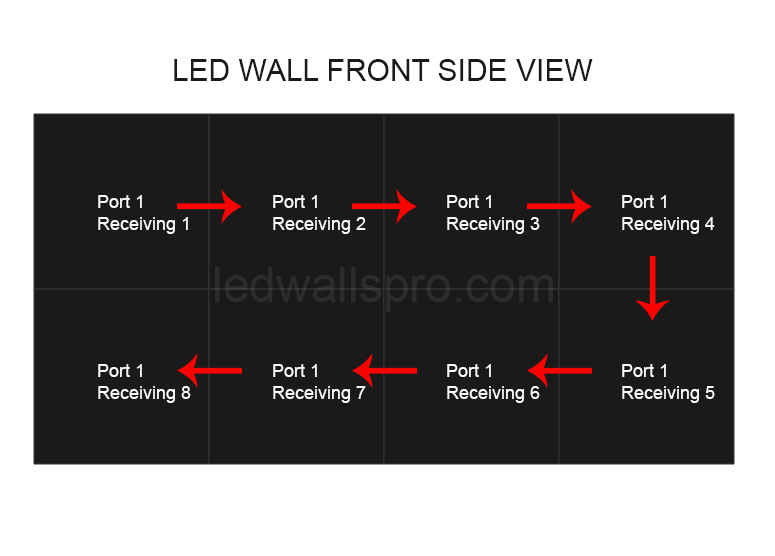
  • Click and drag to map the wall in front-of-screen view.
Mapping a LED Wall with a NovaStar Processor
  • This is what it would look like for the front view
Mapping a LED Wall with a NovaStar Processor
  • Hit Send to Hardware to configure the wall.

Step 5: Save Configuration

  • To make the configuration permanent, click Save in the processor.
Mapping a LED Wall with a NovaStar Processor
  • Also, save a backup by selecting Save to File for future use.

Learn more about our LED wall product range 

For more details on NovaStar processors, visit the official NovaStar page.

Privaled
Led Walls Pro is an Official Planar Distributor